
Login to Google Analytics at analytics.google.com
Navigate to Behavior > Top Events > Event Action and search for Duration
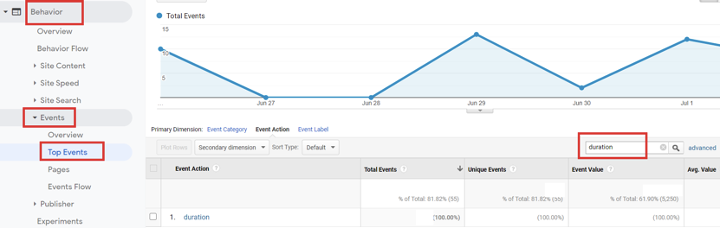
There are two methods to find the web session related to the Call ID, both options give the same outcome.
Option 1 - Adding the Call ID as a secondary dimension
Click on Secondary dimension then search and select Call ID under Custom Dimensions
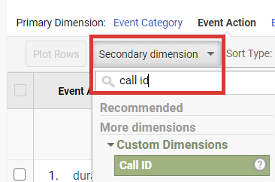
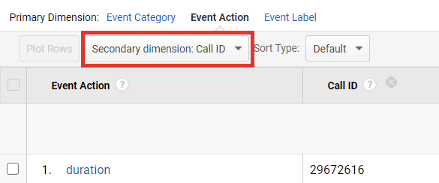
Note: If you are unable to find Call ID that means it has not yet been set up. Please see Section 2: Add Custom Dimensions and Metrics how to set up a new custom dimension at https://support.delaconcorp.com/hc/en-us/articles/360026848853-Delacon-and-Google-Analytics-Integration-and-Setup-Guide-1
Option 2 - Adding the Call ID as an Event Label
Click on Secondary Dimension then search and select Event Label
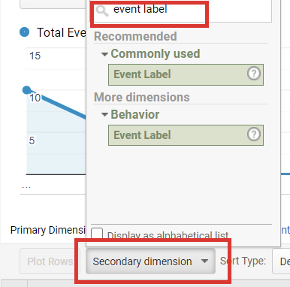
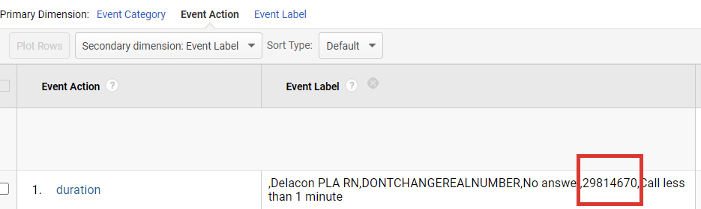
Note: If you are unable to find the Call ID within the Event Label field that means it has not yet been set up. Please see the Customise Event Label (optional) section for information on how to enable additional Event Label data at https://support.delaconcorp.com/hc/en-us/articles/360026648454-Delacon-and-Google-Analytics-Setup-Guide-Part-2-Advanced-Configuration-and-Setup-
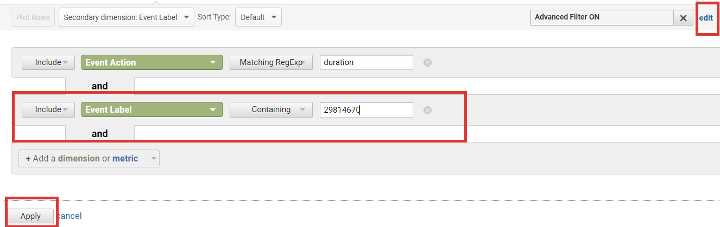
To find the specific Call ID, click on Edit > add Event Label then enter the specific Call ID in the field > Apply
To understand a specific users behavior you will need to follow these steps:
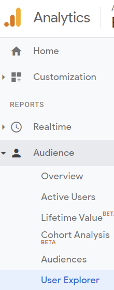
Navigate to Audience > User Explorer
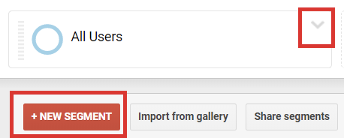
Click drop down menu and click on +NEW SEGMENT
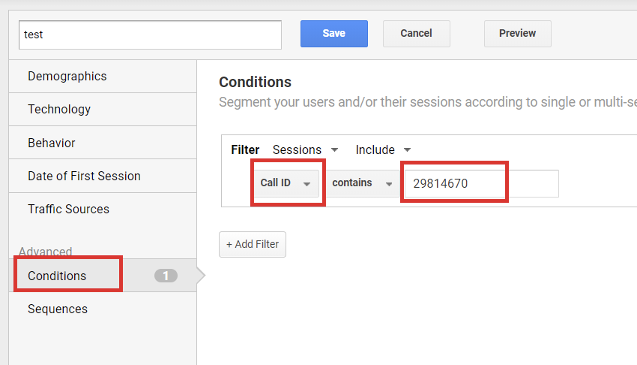
Select Conditions then choose Call ID from the selection then enter the Call ID in within the field then click Preview
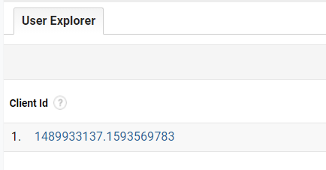
Scroll down to see the Client ID that is associated with that Call ID
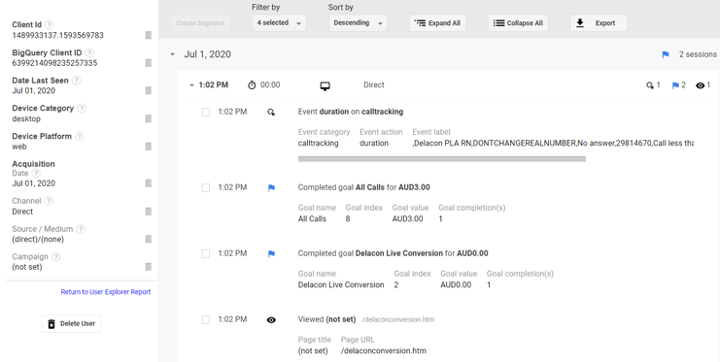
Click on the Client ID to see the users journey by time stamp
Comments
0 comments
Please sign in to leave a comment.